


Put your Black Friday homepage on a timer, not an alarm: decide what changes, schedule when it switches on and off, and test it on a phone before November 27.
Black Friday 2026 falls on Friday, November 27, and Cyber Monday on November 30. Last year Shopify merchants sold $14.6 billion over the BFCM weekend, peaking at $5.1 million a minute at 12:01 p.m. EST on Black Friday. That peak is the reason the homepage switch should already have happened by the time anyone in your team wakes up.
Chase Fisher, founder of Blenders Eyewear, put the problem plainly in a Shopify case study: “When things go live at midnight, you don't want to have to stay up till midnight to do all these changes.” Back then, scheduling a site change was a Shopify Plus job. In 2026 it is not.
Key takeaways
- A Black Friday homepage is a temporary takeover of your normal homepage: new announcement bar, sale hero and deal entry points, then a clean revert.
- Change 5 things, leave the rest alone. Navigation, search, product templates and checkout stay as they are.
- Schedule it with Shopify Rollouts. Rollouts is available on Basic plans and above, lives under Markets > Rollouts, and reverts theme changes automatically at the end time you set.
- Design the first phone screen first. 57.5% of Cyber Monday 2025 online sales came from a mobile device, according to Adobe.
- Paid traffic still goes to a landing page. The homepage routes returning and organic visitors; the ad click lands on the offer page.
On this page
- What is a Black Friday homepage?
- What to change on your homepage, and what to leave alone
- Schedule the switch with Shopify Rollouts
- How to build a Black Friday homepage in PageFly
- Test it before November 27
- Common Black Friday homepage mistakes
What is a Black Friday homepage?
A Black Friday homepage is a time-limited version of your store's homepage that puts the sale first: the offer and deadline in the announcement bar, a sale hero, and shortcuts into the discounted collections. It runs for the sale window and then switches back to your normal homepage.
It is not the same thing as a Black Friday landing page. A landing page is built for one offer and one click, usually from an ad or an email. Your homepage has to serve everyone who types your URL, follows a bookmark or clicks your brand name in search, so its job stays the same during the sale: route each visitor to the right page fast. Our guide to landing pages vs homepages covers that split in detail.
This matters because returning customers do not read your ads. On Black Friday they come straight to the homepage, and if it still shows September's hero, they have to hunt for the deal.
What to change on your homepage, and what to leave alone
A takeover should be small enough to revert in one step. If you redesign the whole page, you also have to un-redesign it on December 1, which is exactly the job nobody wants. We use the same section order as in our Shopify homepage guide and only swap the parts that carry the offer.
| Homepage section | Black Friday version | What reverts on December 1 |
|---|---|---|
| Announcement bar | Offer, deadline and shipping cutoff in one line of text | Your normal free-shipping or brand message |
| Hero | Sale headline, real end date, one button into the sale collection | Your evergreen hero |
| Entry points | 3 to 5 tiles into discounted collections | Your normal featured collections |
| Offer terms | A short text strip: what is discounted, what is excluded, when it ends | Removed |
| Logistics | Holiday shipping cutoffs and return window | Your normal shipping note |
| Navigation, search, product pages, checkout | No change | Nothing to revert |
A few rules make that table work in practice:
- Keep the offer in text. If the deadline only exists inside a banner image, extending the sale means redesigning the image. Text is also what search engines and AI assistants can read, which is the point of getting your store cited by AI answers.
- Give the announcement bar one job. During the sale it carries the offer and the deadline, nothing else. Our Shopify announcement bar guide shows where to edit it in the theme editor.
- Size the hero for a phone. The Shopify banner size cheat sheet lists the dimensions and the safe zone that survives a mobile crop.
- Point tiles at real collections. A tile that opens a flat “all products” grid wastes the click; a tidy collection page finishes the job.
Schedule the switch with Shopify Rollouts
Shopify Rollouts is the admin feature that saves theme changes and publishes them at a date and time you choose. Shopify announced it in its changelog on March 31, 2026: “Set an end date for limited-time events like flash sales and your store automatically reverts when the promotion ends.”
This is the core of a homepage on a timer. Here is what the Shopify Help Center and changelog say it can and cannot do, as of October 22, 2026:
| Question | Answer |
|---|---|
| Which plans? | Rollouts: Basic and above. Experiments (A/B tests): Grow and above. Market-specific targeting: Advanced and Plus. |
| Where is it? | Shopify admin > Markets > Rollouts |
| What can a rollout change? | Edit the main theme, replace the main theme, or replace the checkout and accounts configuration. One change of each type per rollout. |
| When does it go live? | Immediately, or at a scheduled date and time |
| How does it end? | At the end date and time, theme customizations roll back automatically |
| How many at once? | Up to 5 rollouts scheduled or running, per Shopify's BFCM Rollouts guide |
| Limits | Online store checkouts only; headless and custom storefront checkouts are not supported |
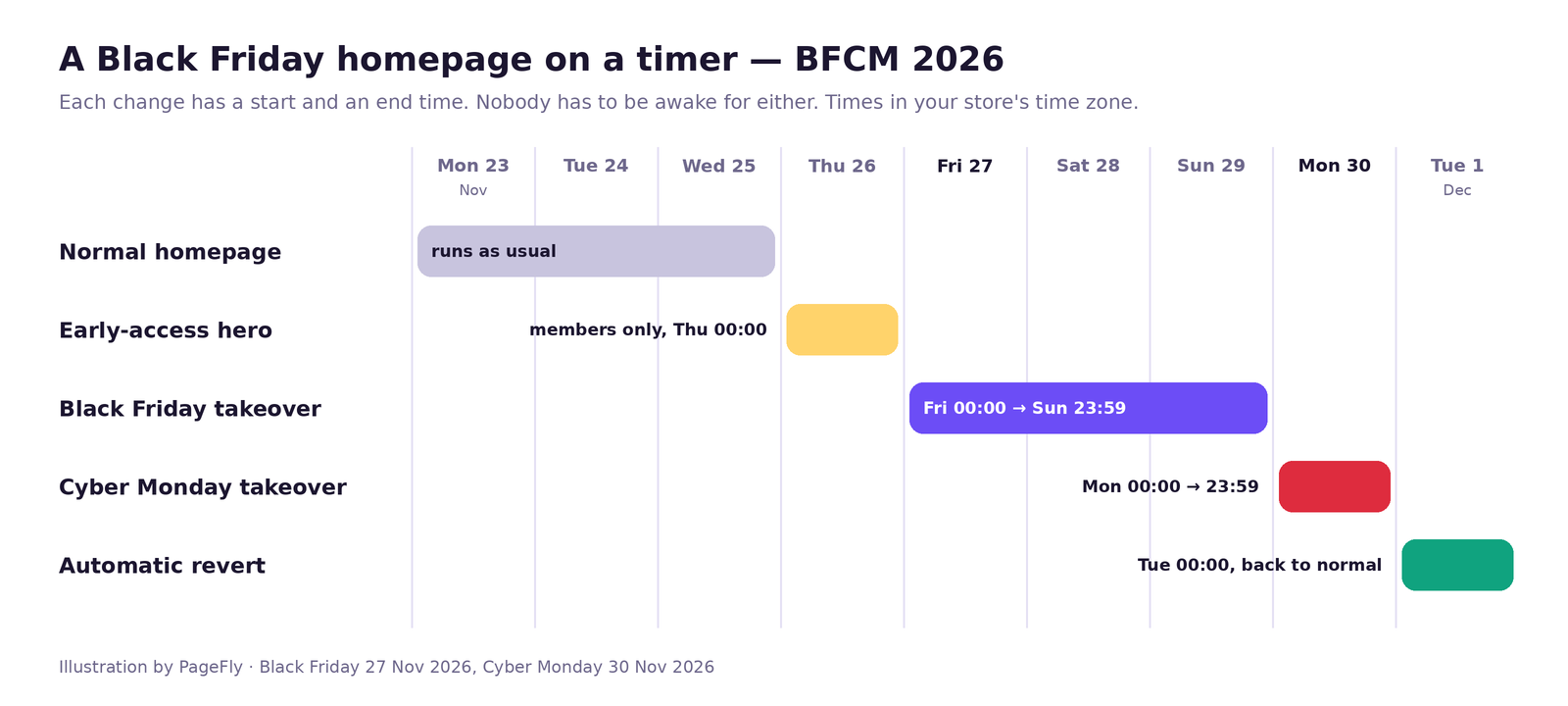
For BFCM 2026, a homepage on a timer uses up to three rollouts, all set in your store's time zone:
- Early access, Thursday November 26, 00:00. Optional. Swap the hero to a members-only message if you open the sale early to your email list.
- Black Friday, Friday November 27, 00:00 to Sunday November 29, 23:59. Announcement bar, sale hero, deal tiles and terms strip.
- Cyber Monday, Monday November 30, 00:00 to 23:59. Treat it as its own campaign with its own hero, not a renamed Black Friday banner. When it ends, the theme rolls back to your normal homepage on December 1.
Two honest caveats. First, the Help Center describes rollouts in terms of theme, checkout and accounts changes; Shopify's BFCM guide also mentions discounts and catalogs, so check what your admin shows before you plan around them. Second, if your discount itself has an end date, set that in the discount, not only in the homepage copy. A hero that disappears on time while the code keeps working is a quiet margin leak. Our week-by-week BFCM checklist covers the discount side.
How to build a Black Friday homepage in PageFly
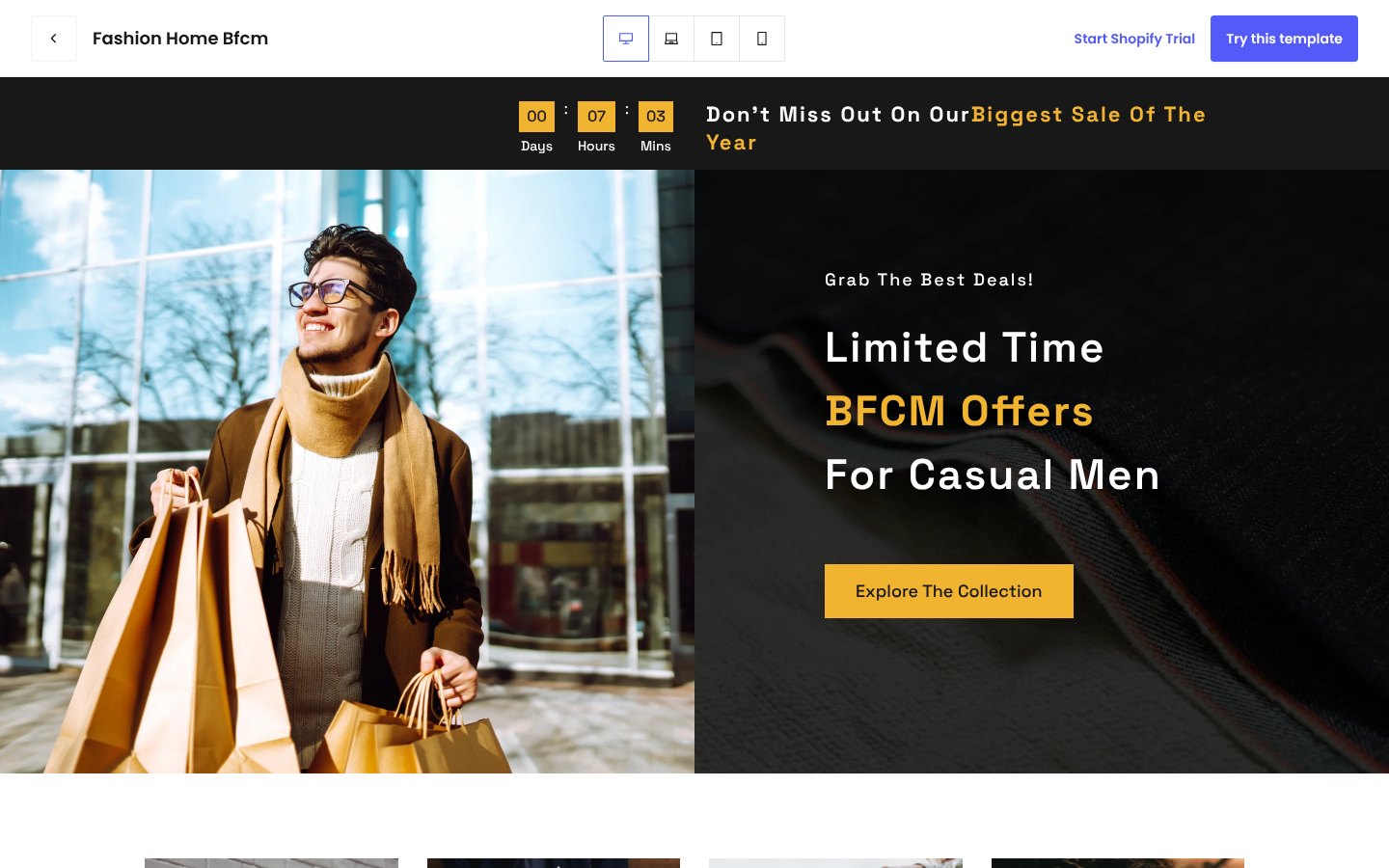
PageFly, a Shopify page builder, has a ready-made Fashion Home BFCM template for this job. We opened it in the public template preview on October 22, 2026 and checked it on desktop and mobile. Here is the route we followed.
- Open the template preview. Go to the PageFly template library, filter Page Type to Homepage, and open Fashion Home BFCM. The preview shows a countdown bar, a split hero reading “Limited Time BFCM Offers” and an “Explore The Collection” button.
- Switch to the mobile preview. Click the phone icon at the top. In our test, the countdown, the headline and the photo filled the first mobile screen, and the “Explore The Collection” button sat below it. Move the button up or shorten the photo when you customize, because most of your sale traffic will see this layout first.
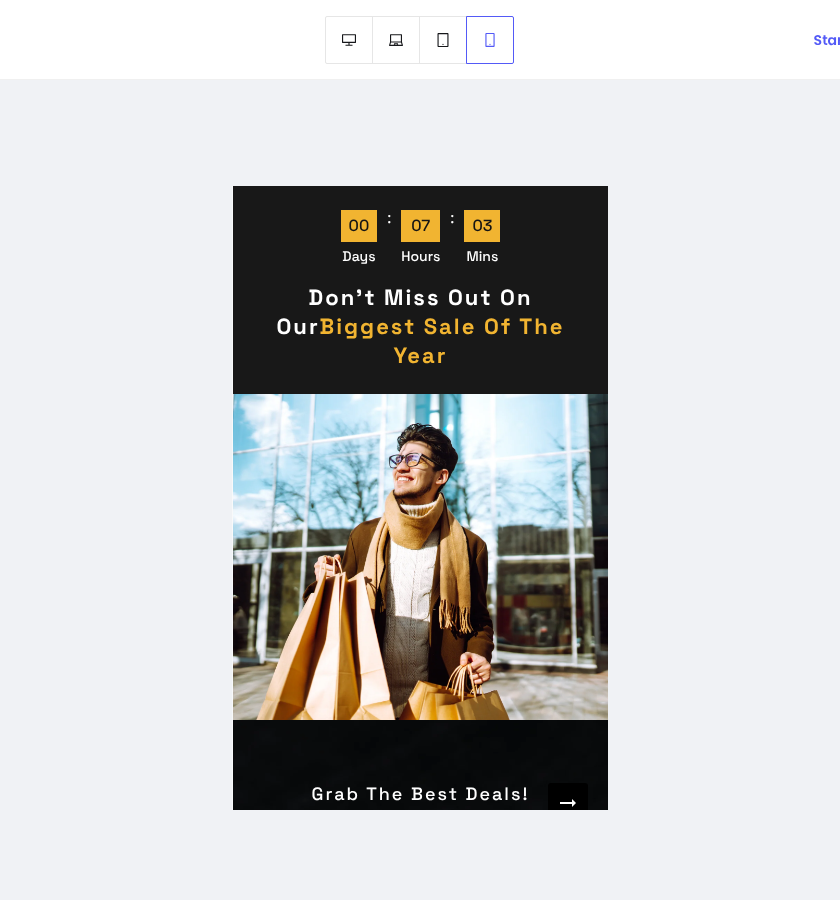
- Start from the template. Click Try this template to open it in your store, then replace the demo copy. Check the headline spacing too: in the preview, the countdown bar reads “Our” and “Biggest” with no space between them.
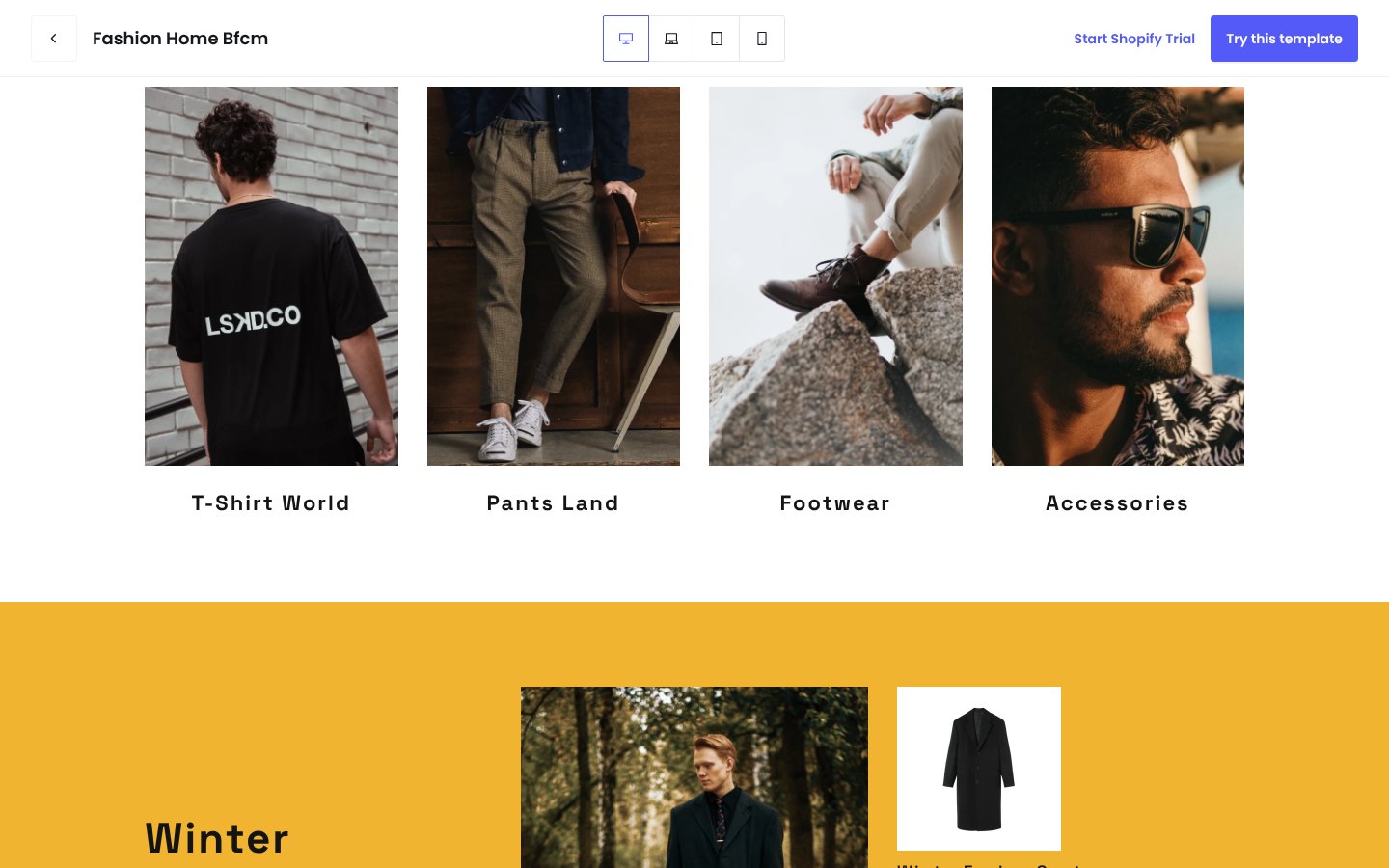
- Point the category tiles at your sale collections. The template ships with 4 tiles (T-Shirt World, Pants Land, Footwear, Accessories). Rename them and link each one to a real discounted collection.
- Set the countdown to your real deadline. Point it at the actual end of your sale in your store's time zone, and never use a timer that resets on refresh.
- Plan the switch and the switch-back. Rollouts schedules theme edits. We have not tested whether a rollout picks up a page published from PageFly, so if your takeover homepage is a PageFly page, publish it at the start of the sale and restore your normal homepage afterward, and keep both versions saved.
If you only need the sale sections rather than a whole new page, reusable Shopify sections keep the countdown and offer strip consistent across the homepage and your sale pages. The Black Friday Cyber Monday page on our site walks through the wider campaign setup.
Test it before November 27
A takeover you see for the first time at 00:01 on Black Friday is a takeover you cannot fix. Three checks are worth doing in the first half of November:
- Preview the scheduled version on a real phone. Adobe found that 57.5% of Cyber Monday 2025 online sales came through a mobile device. The first screen should show the offer, the deadline and one button.
- Test the hero, not the whole page. If you are on Grow or above, a Rollouts experiment can split traffic between your sale hero and your current one. Run it in early November, because a test started on Black Friday ends after the sale. Our Shopify A/B testing guide explains how to read the result, and PageFly's CRO tools include A/B tests for pages built in PageFly.
- Click every tile and button. Each one should land on a collection with sale prices showing, not on last year's sale URL.
If you sell in several countries, check the timing per market. Market-specific targeting in Rollouts needs Advanced or Plus, and the rules for prices and currencies live in Shopify Markets.
Common Black Friday homepage mistakes
- Sending ad traffic to the homepage. The homepage routes; the ad click should land on the offer page that matches the ad.
- Baking the end date into an image. Keep dates and terms in editable text so you can extend or correct them in seconds.
- Forgetting the revert. A “Black Friday” hero still live on December 3 tells returning shoppers nobody is minding the store. An end date in Rollouts removes the job.
- Changing navigation for the sale. Shoppers who know your menu should still find it. Add sale entry points; do not remove the old ones.
- Skipping the apps check. Countdown, upsell and review apps add load time. Our list of Black Friday apps and when to set them up covers what to install before the code freeze.
Your returns window belongs in the logistics line of the takeover too; if it changes for the holidays, update your Shopify return policy first. After the sale, compare homepage click-through and your store's conversion rate against the weeks before, so next year's takeover starts from data.
To see what else the editor can do on a homepage, start with PageFly's Shopify homepage builder overview. PageFly has a free plan, and the pricing page shows what each paid plan adds.
Black Friday Homepage FAQ
It is a time-limited version of your store's homepage that puts the sale first: the offer and deadline in the announcement bar, a sale hero and shortcuts into discounted collections. It runs for the sale window and then switches back to your normal homepage.
Send ad and email clicks to a dedicated landing page that matches the offer. The homepage serves returning and organic visitors, so its job during the sale is to route them to the deals fast.
Yes. Shopify Rollouts, under Markets > Rollouts on Basic plans and above, publishes theme changes at a set date and time and rolls them back automatically at the end date.
Build and test it in early November. Black Friday is November 27, 2026 and Cyber Monday is November 30, so schedule the switch for 00:00 on November 27 in your store's time zone and the revert for December 1.
On the Grow plan or above, a Rollouts experiment compares your changes against your current theme with real traffic. Run it before the sale, because a test started on Black Friday finishes after the traffic is gone.