


Updated October 8, 2026. We added what Shopify has said publicly since launch (app support, early access, plan and template details), refreshed the limits table, and expanded the section on where PageFly fits next to Canvas.
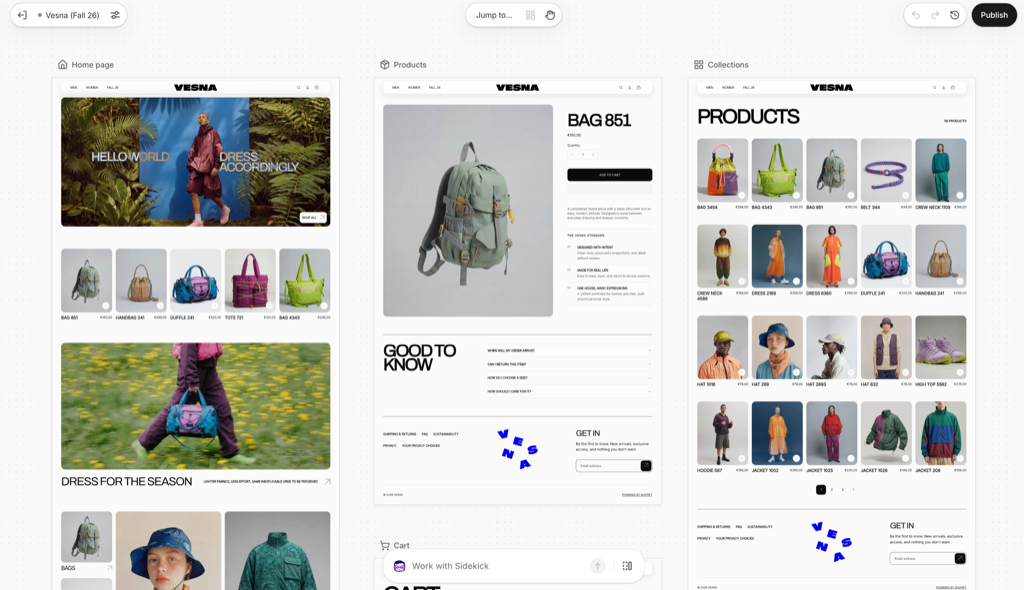
On October 1, 2026, Shopify launched Canvas, a new place to design your online store by talking to Sidekick, its AI assistant. Instead of editing one page at a time, you see every template of your theme on one board and ask Sidekick to change it.
That is a big shift for anyone who has paid a developer to move a section. It also comes with trade-offs that Shopify spells out in its own help docs. This guide covers what Canvas does, what has changed since launch, how to try it without risking your live store, what it can't do yet, and where a page builder like PageFly, a Shopify app for building landing and product pages, still fits.
Key takeaways
- What it is: Canvas is Shopify's new AI design workspace. Sidekick edits your theme files directly while you watch the real store update.
- The trade-off: a theme you edit in Canvas stops receiving theme updates, can't be downloaded, and can't have app blocks or app embeds added in Canvas.
- Who can use it today: early access for certain stores only, desktop only, on Shopify-made or custom themes. Third-party Theme Store themes aren't supported yet.
- Apps: Shopify has told developers that app support (theme app extensions) is coming soon. Until then, app blocks and embeds aren't available in a Canvas theme.
- The safe way to try it: duplicate your theme in Canvas. Your original theme stays in your library and editable in the classic theme editor.
- Our take: Canvas works on the theme layer. Campaign pages, A/B tests and per-market pages live on the page layer. Use each tool where it is strongest.
On this page
- What is Shopify Canvas?
- What's new since launch
- How Canvas changes your store
- How to try Canvas without touching your live theme
- We tried Canvas on our own test store
- What Canvas can't do yet
- Canvas vs a page builder: theme layer vs page layer
- Where PageFly fits next to Canvas
- Pick the tool per job
What is Shopify Canvas?
Shopify Canvas is a design workspace in the Shopify admin where you build or change your online store theme with Sidekick, Shopify's AI assistant. It shows all your store's templates side by side, lets you click any part to edit it, and lets Sidekick make changes that go beyond a block's settings.
Here's the point of view we'll use for the rest of this guide: Canvas works on the theme layer. It changes the templates, styles and code that every page of your store shares. That is different from the page layer, where you build one campaign page, test it and measure it. Both layers matter, and the best tool for one is not always the best tool for the other.
What changed on October 1
Sidekick already made more than 25 million edits to themes in the first half of 2026, according to Shopify's Canvas announcement. Canvas gives that work a proper home. Sidekick now navigates your theme files, makes coordinated changes across them, checks its own code and reviews screenshots of the result before showing it to you.
Ben Sehl, Director of Product at Shopify and co-founder of Kotn, put the change this way in the same announcement: "When I built Kotn 12 years ago, I knew how to code and it still took me two weeks to get a rough store working. Today, an entrepreneur on Shopify can build a fully custom store in twenty minutes."
Source: Shopify on YouTube — "Introducing Canvas", the official launch video.
If you've read our Shopify Sidekick review, this is the step that review was waiting for: Sidekick moving from giving advice to editing your storefront, one more step toward agentic commerce on Shopify.
Merchants were already moving this way
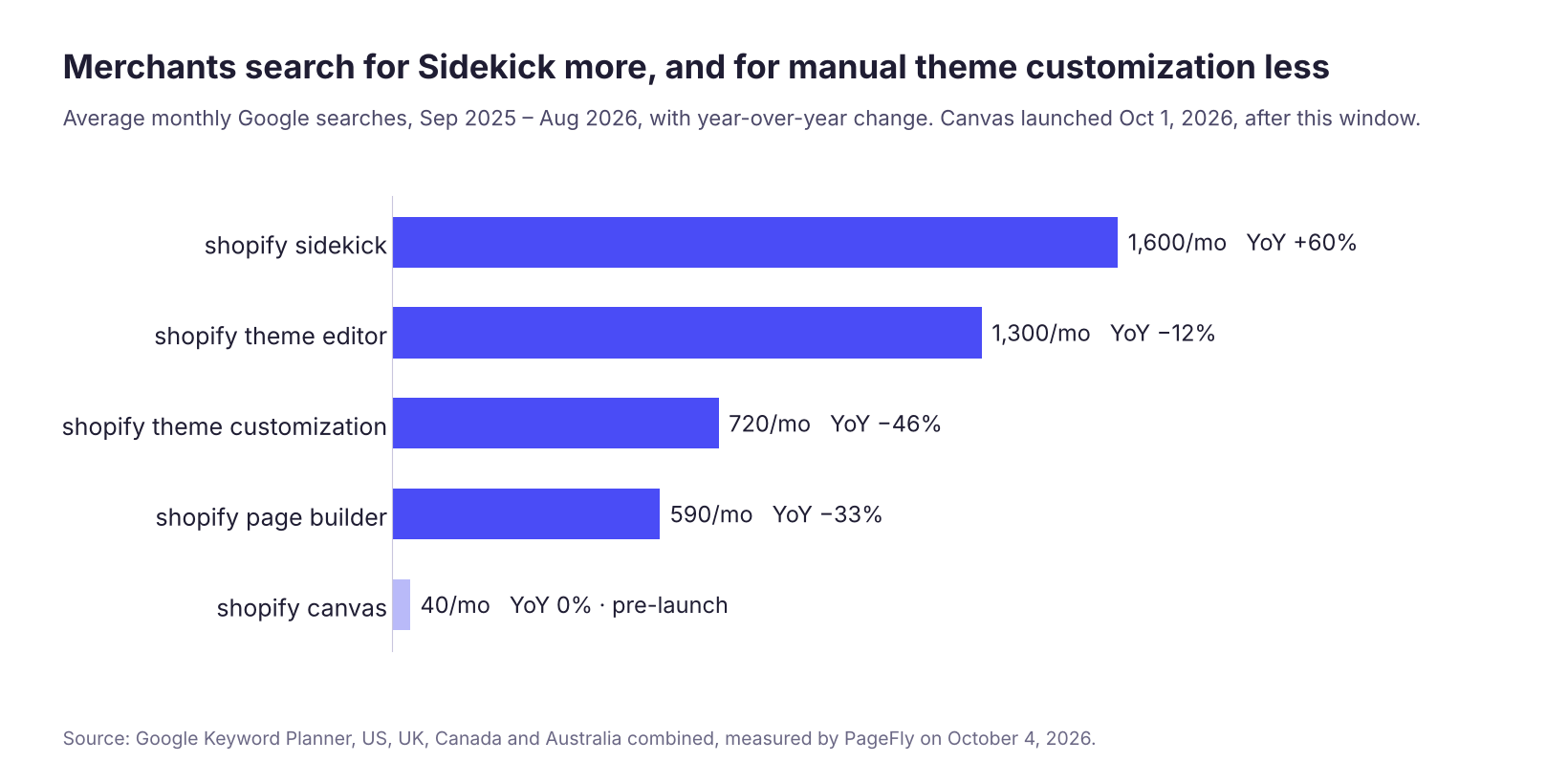
Merchants are searching less for how to customize a theme by hand and more for the assistant that does it for them. Canvas is Shopify answering that shift inside the admin.
What's new since launch
Canvas is a week old, and Shopify has added detail in its Help Center and its developer community since the announcement. Here is what has been said publicly, as of October 8, 2026.
- App support is the next big gap to close. On launch day, Shopify told app developers that "Canvas doesn't support theme app extensions yet", so if you create or duplicate a theme in Canvas, app blocks and app embeds won't be available in it for now. A Shopify team member added that support is planned "within the next few weeks", and on October 2 wrote that the team is "sprinting to getting apps working in Canvas" (Shopify developer community). Shopify also says apps keep working in the classic theme editor and on your existing themes.
- Sidekick knows about the app gap. In the same thread, Shopify said that while apps aren't supported, Sidekick "is aware and handles this gracefully". In practice, still check your app features in the preview before you publish.
- Canvas themes don't show up in apps' theme lists yet. Shopify told developers that themes edited in Canvas won't appear when an app lists a store's themes. If an app asks you to pick a theme, a Canvas copy may not be in that list for now.
- Early access means certain stores. The requirements page says Canvas "is in early access and is available only to certain stores". Shopify's announcement says it is rolling out over the coming days.
- Your plan decides whether you can edit. Canvas needs a plan that includes theme customization. If you move to a plan without it, you can still view a Canvas-edited theme but can't edit or publish it.
- Two smaller limits were documented. Metaobject templates aren't listed under Jump to in Canvas, and on some older themes you can't edit text directly in the preview.
- Still the same: desktop only, no separate price announced, Shopify-made and custom themes only, and no Markets, in-Canvas translation or rollout editing. Shopify says it expects to support theme app extensions and third-party themes before Canvas becomes the default editor, and that "Canvas is not replacing the existing editor yet".
We'll keep this list current as Shopify ships changes. If app support lands, the limits table below is the first thing we'll update.
How Canvas changes your store
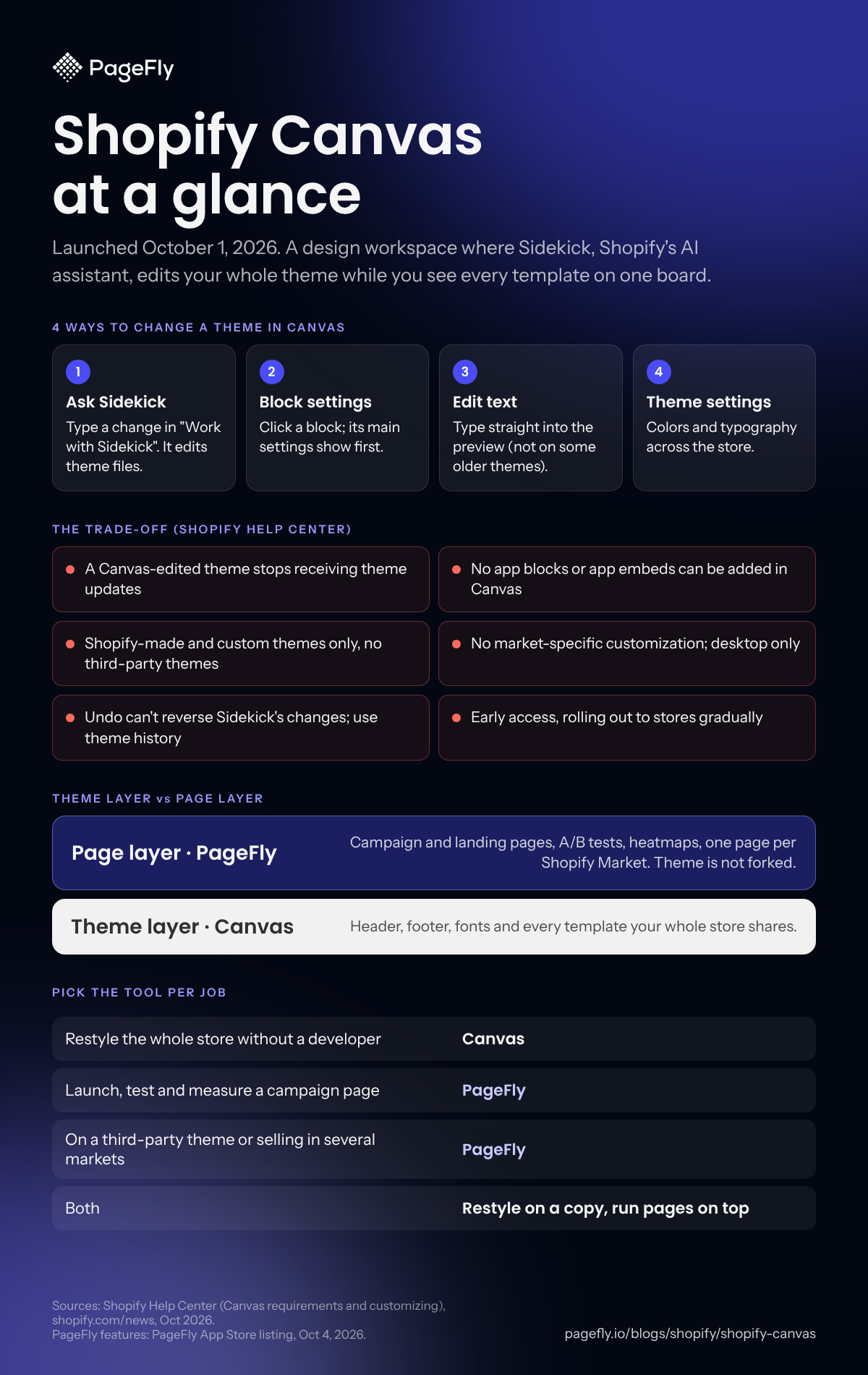
Canvas gives you four ways to change a theme, according to Shopify's guide to customizing themes in Canvas:
- Ask Sidekick. Type a change in the Work with Sidekick field. Select a block first if you want the change to apply only there.
- Change a block's settings. Click a block in the preview and its most-used settings appear first.
- Edit text in the preview. Click the text and type. On some older themes this doesn't work, so you use the block's settings instead.
- Change theme settings. Colors and typography that apply across the whole theme.
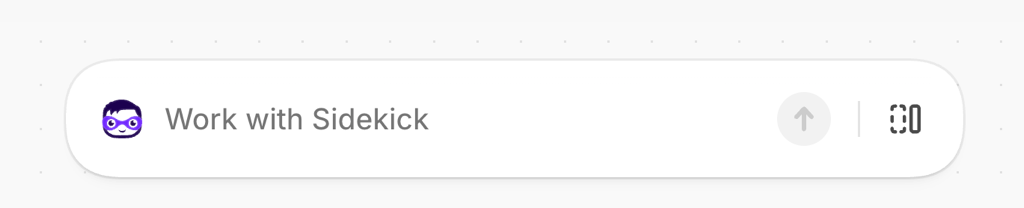
The preview is your real theme running real code, not a mockup. You can switch between desktop, tablet and mobile widths, preview a different product or collection, and browse with the inspector off to see the store as a shopper would.
Two details worth knowing before you start
- There is no Save button. Canvas saves every change automatically. Publish doesn't save your work; it makes your changes visible to customers. On your live theme, the button reads Update instead.
- Undo doesn't reach Sidekick's changes. When Sidekick makes a change, your undo history is cleared. To reverse it, ask Sidekick to change it back or restore an earlier version from theme history.
That second point is the one that will catch people out. Get into the habit of checking theme history before you ask for a big change, so you know which version to go back to.
How to try Canvas without touching your live theme
The safest way to test Canvas is on a copy. When you duplicate a supported theme in Canvas, the original stays in your theme library and you keep editing it in the classic Shopify theme editor. Shopify's Help Center is explicit that the two themes are separate, so changes you make to one aren't added to the other.
- Check that your store qualifies. You need a desktop browser, a plan that includes theme customization, the Online store › Themes › Edit code staff permission, and a theme made by Shopify (such as Dawn or Horizon) or a custom theme. Not sure who made yours? Run it through our Shopify theme detector.
- Look for Canvas on your Themes page. Go to Online Store. If Canvas has reached your store, you'll see a New button and a Duplicate in Canvas option in the menu next to a supported theme.
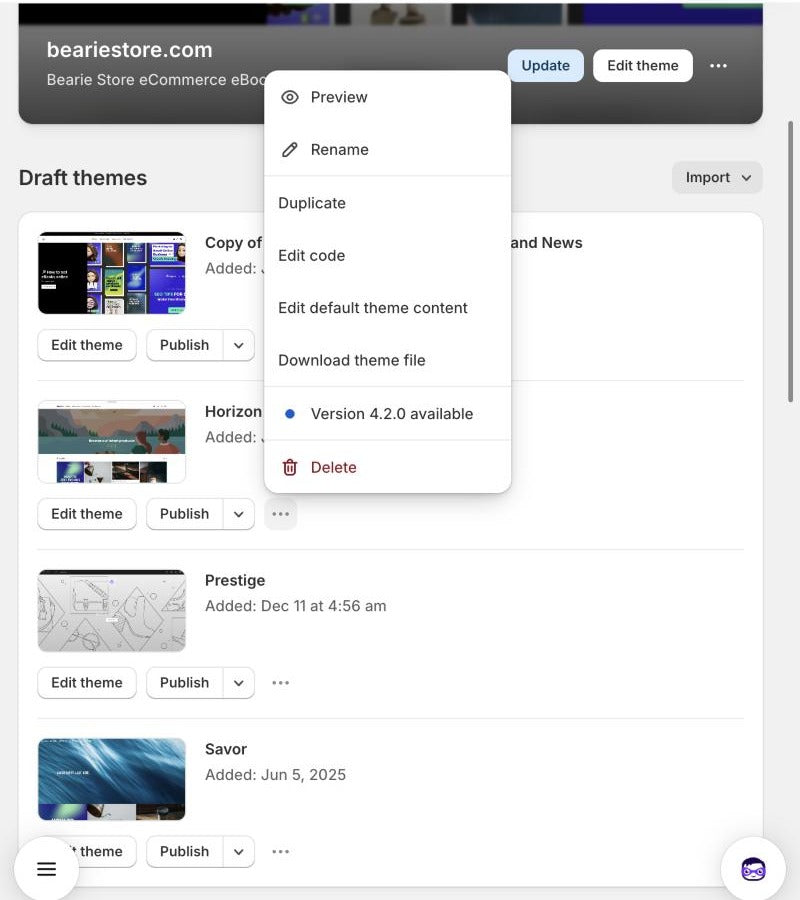
- Duplicate your theme in Canvas. Click the menu next to the theme, then Duplicate in Canvas. The copy opens in Canvas and gets a Canvas badge in your theme library. (Starting from scratch? Click New and describe your brand to Sidekick instead.)
- Ask for one change at a time. For example, on your product page: "Make the image gallery full width on desktop and add a size guide link under the price." Review the result before the next request.
- Check every important template. Open your home page, a product, a collection and the cart in full-screen preview. Switch to mobile width each time.
- Check your apps in the preview. Make sure your reviews, upsells and any other app features still appear. Canvas can't add or configure app blocks or app embeds today, so anything missing here has to be solved before you publish.
- Publish, or walk away. When the copy is ready, click Publish in the top bar and review the change list. Make sure you're publishing the copy that has your latest changes. If it isn't ready, leave it as a draft. Your live theme hasn't changed.

If the theme can't be published, Canvas lists the errors and offers a Fix with Sidekick button. And if a published change turns out wrong, theme history lets you restore an earlier version and publish that instead.
We tried Canvas on our own test store (October 8, 2026)
We checked two of our Shopify test stores, both on the Horizon theme, to see how Canvas behaves next to an installed page builder.
- Access is uneven. One store had Canvas: the Online Store page showed a New button with the hint "Bring your idea to life in Canvas". A store we created on October 7 didn't have it yet. So a brand-new store is no guarantee of access.
- New starts from Sidekick, not from a blank theme editor. Clicking New created a separate, unpublished theme and opened it in Canvas. Sidekick asked short questions (the vibe, what we sell), then started writing theme settings itself. The live Horizon theme stayed exactly as it was.
- Sidekick can see your installed apps, but the theme can't use their blocks yet. The Apps list in Sidekick's composer showed PageFly AI Page Builder, switched on. When we asked whether it could add PageFly app blocks or turn on the PageFly app embed in this Canvas theme, Sidekick said no: Canvas doesn't support apps yet, and a theme built in Canvas doesn't use the usual sections and JSON templates, so there is no Add section › Apps spot for app blocks.
- Your live setup isn't touched. Sidekick confirmed the PageFly app embed was still on in the live Horizon theme, and nothing in the Canvas copy goes live until you click Publish.
Our takeaway: Canvas is a good place to explore a new look. If your store depends on PageFly pages or other apps, keep publishing from your current theme for now, and test any Canvas copy page by page before you switch.
What Canvas can't do yet
Shopify is clear that Canvas is early. It is "not replacing the existing editor yet", and the requirements and considerations page lists the limits. Here they are with what each one means for a store.
| Limit (as of October 8, 2026) | What it means for you |
|---|---|
| Early access, certain stores only | You may not have it yet. Look for Duplicate in Canvas on your Themes page. |
| Desktop only | No quick fixes from your phone. |
| Shopify-made and custom themes only | If you bought one of the third-party themes from the Theme Store, you can't use Canvas on it today. |
| No theme updates after editing | Bug fixes and new features from the theme developer stop reaching the Canvas copy. |
| No theme file download | Harder to hand the theme to a developer or keep an outside backup. |
| No app blocks or app embeds in Canvas | Apps that place content on your theme through blocks or embeds can't be set up in Canvas. Shopify has said app support is coming soon. |
| Not listed when apps read your themes | An app that asks you to pick a theme may not show your Canvas copy yet. |
| No blocks added by hand | To add a new block, you ask Sidekick to add it. |
| No market-specific customization | If you sell in several countries with Shopify Markets, per-market theme changes aren't possible in Canvas. |
| Translations through Translate & Adapt only | You can't translate theme content inside Canvas. |
| Limited rollouts | You can roll out a Canvas theme as a replacement, but you can't edit it through a rollout. |
| Metaobject templates not in Jump to | Templates for metaobject pages don't appear in Canvas navigation. |
| Plan must include theme customization | On a plan without it, you can view a Canvas theme but not edit or publish it. |
| Staff need the Edit code permission | Team members without it can't open Canvas. |
Shopify told theme developers there is "not yet full backwards compatibility" with third-party themes and that it is working on it, in its developer community post. Expect this table to shrink. Until it does, the theme-update trade-off is the one to weigh hardest: once you edit a theme in Canvas, you own every future fix, the same trade-off we found when we tested vibe coding a Shopify store.
Canvas vs a page builder: theme layer vs page layer
Canvas and a Shopify page builder overlap less than they first seem to. One reshapes the theme every page shares. The other builds individual pages that sit on top of that theme. Here is how they compare on the jobs merchants actually ask about.
| Job | Shopify Canvas | PageFly | Classic theme editor |
|---|---|---|---|
| Restyle the whole store (header, footer, fonts, every product page) | Best fit. Built for it. | Not its main job. It builds pages, not your theme. | Yes, within the theme's settings |
| Change beyond the theme's settings | Yes. Sidekick edits the code. | Yes, within the pages you build | Needs a developer |
| Campaign or landing page for one offer | Through your theme's templates | Core job, from 320+ templates | Limited by the theme's sections |
| Show review, upsell and other app features on a page | Not yet. App blocks and embeds aren't supported today | Yes, with 130+ app integrations | Yes, through app blocks |
| A/B test a page | Not offered | Yes, with PageFly A/B testing on paid plans | Not offered (Shopify Rollouts tests whole-theme changes) |
| Third-party Theme Store theme | Not supported yet | Works through the PageFly Theme Extension | Yes |
| Per-market content | Not supported | Localization per Shopify Market | Yes |
| Keeps theme updates | No, the edited copy stops updating | Your theme isn't forked | Yes |
| AI help | Sidekick, built in | FlyMate AI, PageFly inside Sidekick, and a connector for Claude and ChatGPT | Sidekick in the admin |
| Cost to start | No separate price announced; needs a plan with theme customization | Free plan with 1 published slot; paid plans from $24 a month | Included with your plan |
| Best for | Solo founders and small teams on a Shopify theme who want a custom look without a developer | Stores that run campaigns, test pages, rely on apps, sell in several markets or use a third-party theme | Small, safe changes to a theme you want to keep updating |
PageFly plan and rating facts are from the PageFly App Store listing, read on October 8, 2026: rated 4.9 from 5,904 reviews, with the Built for Shopify badge.
The honest summary: if your goal is "make the whole store look like us", try Canvas first. If your goal is "launch this offer by Friday and know whether it worked", that is a page job, like the single-offer Shopify landing pages we break down elsewhere. The Black Friday landing page templates we tested last month are a typical example.
Where PageFly fits next to Canvas
We want to be precise here, because this is our own product. PageFly doesn't compete with Canvas for your theme. It works on the page layer, on top of whatever theme you run, and it adds the things a theme editor isn't built to do: app features on campaign pages, real tests, and a clear read on why a page converts or doesn't.
One compatibility note first. PageFly pages rely on the PageFly Theme Extension, an app embed you turn on in your theme, as the PageFly help center explains. Today, Canvas can't add or configure app embeds, and Shopify says Canvas themes don't yet appear when apps list a store's themes. We confirmed this on our own test store on October 8: in a new Canvas theme, Sidekick couldn’t add PageFly app blocks or turn on the PageFly app embed, while the embed on our live theme kept working. So until Shopify ships app support in Canvas, we recommend keeping your PageFly pages on a theme you edit in the classic theme editor.
What PageFly adds next to Canvas today
- Your apps, on the page. PageFly works with 130+ Shopify apps, including review apps like Judge.me and Yotpo and bundle and upsell apps like Kaching, on pages you build on your current theme. That matters most right now, because a Canvas theme can't show app blocks or embeds yet.
- A/B tests with a clear winner. PageFly A/B testing splits traffic between two versions of a page and reads the result with Bayesian statistics, so you can pick a winning metric such as add-to-cart rate or conversion rate and publish the winner. Shopify's own Rollouts experiments compare whole-theme changes; their analytics report conversion, bounce, add-to-cart and reached-checkout rates. Page-level tests are a different job, and the two can sit side by side.
- A free diagnosis of any page. AI Page Checkup scores a saved PageFly page out of 100 and ranks issues by priority. It's available on every PageFly plan, including Free.
- See what shoppers actually do. PageFly Heatmaps show where visitors click and how far they scroll, with an engagement score for each section. The sales funnel shows which step loses the sale on the pages you built.
Build with AI where you already work
Canvas teaches merchants to describe what they want and let AI build it, the same idea behind Claude Design to Shopify. PageFly works the same way, in three places, all alongside Canvas rather than instead of it:
- Inside PageFly. The AI Page Builder builds a page from a text prompt with FlyMate AI.
- Inside Sidekick. With PageFly installed, ask Sidekick "Create a landing page for this product with PageFly", and it writes a brief and opens PageFly's editor to build the page, unpublished. Sidekick can also list your PageFly pages and report their health scores and A/B test results.
- Inside Claude or ChatGPT. The PageFly connector lets Claude, or ChatGPT in Developer mode, build and edit PageFly pages, read page health and A/B test results, and publish only when you approve.
To try the Sidekick route:
- Open Sidekick in your Shopify admin. Click the Sidekick icon in the top bar.
- Ask for a PageFly page in plain words. The first time, Sidekick asks your permission to access PageFly data.
- Review the page in the PageFly visual editor, then publish it yourself. Building pages uses AI credits, the same as FlyMate.
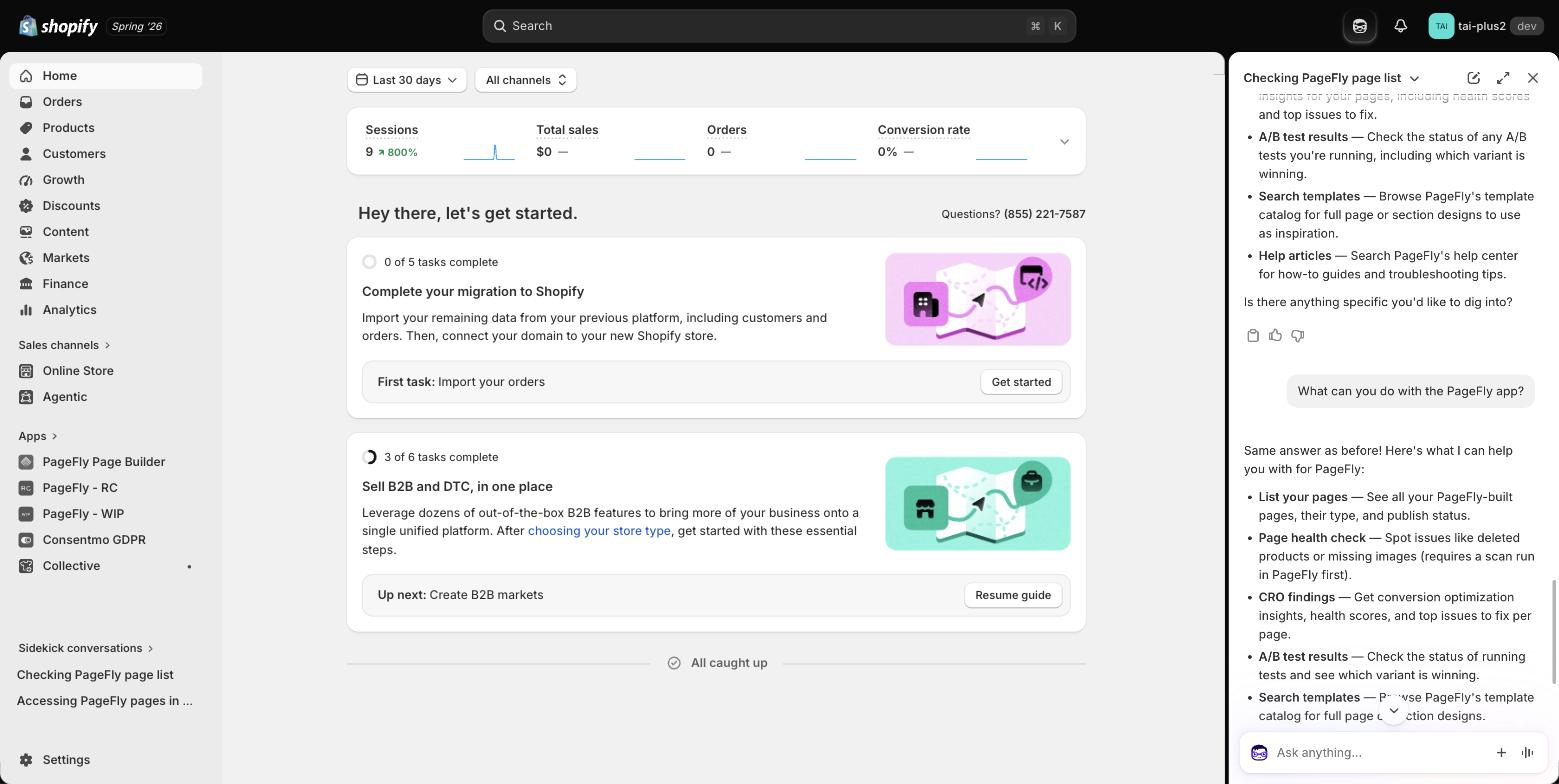
The full walkthrough, with every screen, is in PageFly in Shopify Sidekick.
The setup we'd recommend for now
- Keep your live store and PageFly pages on a theme you edit in the classic theme editor if you rely on app blocks or embeds, page analytics or A/B tests. That's your current live theme, so nothing changes for your existing pages.
- Experiment with Canvas on a duplicate. Canvas edits a separate copy, so your original theme keeps running. Before you publish the copy, open your PageFly pages and app features in its preview and check they render.
- If something is missing, don't publish the Canvas copy. Your live theme and pages stay exactly as they were. Check again once Shopify ships app support.
Pick the tool per job
Canvas is a real step forward, and you don't have to choose sides. Match the tool to the job:
- Use Canvas when you're on a Shopify-made or custom theme, you want a store-wide refresh without a developer, you sell in one main market, you don't depend on app blocks or embeds yet, and you accept owning a theme that no longer updates.
- Use a page builder like PageFly when you're on a third-party theme, you need campaign or landing pages fast, you rely on review or upsell apps, you want to A/B test, you sell across several markets, or you want your theme to keep receiving updates.
- Use both when you restyle the theme in Canvas and run campaign pages on top. Check that your pages and apps work on the Canvas copy before you publish it.
Not sure where to start? Duplicate your theme in Canvas when it reaches your store, and build one campaign page in PageFly on your current theme this week. Compare how long each took and what each changed. That tells you more than any review, ours included. For a broader view of building a store, see our Shopify website builder guide.
Shopify Canvas FAQ
Shopify Canvas is a design workspace in the Shopify admin, launched on October 1, 2026, where you build or change your theme with Sidekick. It shows all your templates side by side, and you can click any block to edit it or ask Sidekick to make the change.
Shopify hasn't announced a separate price for Canvas. It's available on plans that include theme customization; if you move to a plan without it, you can view a Canvas theme but not edit or publish it. Staff need the Edit code permission.
Not yet. Canvas works only with themes developed by Shopify and with custom themes. Shopify says it is working on third-party theme compatibility before Canvas becomes the default editor.
No. A theme you edit in Canvas doesn't receive theme updates, and you can't download its files. Duplicate your theme in Canvas so your original theme keeps updating. Duplicating creates a separate copy, so changes don't sync between the two.
Not with the Undo button. When Sidekick makes a change, your undo history is cleared. Ask Sidekick to change it back, or restore an earlier version from theme history.
Not yet. Canvas can't add or configure app blocks or app embeds today. Shopify has told developers that app support is coming soon. Until then, keep pages that rely on apps on a theme you edit in the classic theme editor, and check the Canvas preview before you publish.
Not for every job. Canvas restyles the theme your whole store shares. A page builder like PageFly builds campaign and landing pages on top of it, shows app features such as reviews and upsells on those pages, and adds A/B tests, heatmaps and a free AI Page Checkup. It also works on third-party themes.
No. Canvas is available only on desktop devices.
Not yet. Canvas is in early access and available only to certain stores while Shopify rolls it out. If you have it, you'll see a New button and a Duplicate in Canvas option on your Themes page.
Not on a Canvas theme yet. PageFly pages rely on the PageFly app embed, and Canvas can't add app blocks or app embeds today. We confirmed this on our own test store on October 8, 2026. Keep publishing PageFly pages from the theme you edit in the classic theme editor; your existing pages keep working there.