


On a live Shopify store selling motorcycle armour, the link that opens the size chart is labelled "Size chart - PLEASE Use", in red. We read that string out of the store's own app configuration on 13 August 2026. It is the most honest piece of ecommerce UX on the internet, and it is also a diagnosis: if your size chart link needs the word "please", it is not a chart problem — it is a placement problem.
Call it the PLEASE-Use Test. Most Shopify size charts fail it. Baymard Institute's apparel research, updated 25 February 2025, found that 82% of apparel sites don't provide sufficient sizing information, and that the size guide needs to sit next to the size selector rather than somewhere further down the page.
The stakes are not subtle. In a 2025 survey of more than 6,000 consumers worldwide, 61% said they returned clothing because of poor fit — the single biggest reason apparel goes back. This guide covers four ways to add a size chart to a Shopify product page, ordered fastest-first, with the plan and theme requirements for each and a comparison of the six size-chart apps we verified on the Shopify App Store today.
The short version
- No Shopify plan gates a size chart. Every method below works on Basic. The real gate is your theme.
- Fastest free method: a table in the product description — 90 seconds, any plan, any theme, including vintage.
- Best free method: Shopify's native pop-up, using a Page-type product metafield plus a Pop-up block. No code, no app — but it links only one page per product.
- Apps start free with 2–3 published charts; the paid entry point across the six we checked ranges from $4.99 to $9 per month, and cm↔inch conversion is not free on all of them.
- Do not promise yourself fewer returns. The largest peer-reviewed study found size-finder users return slightly more — while their lifetime value rises 7.51% the following quarter.
What is a Shopify size chart?
A Shopify size chart is a table of measurements shown on a product page so a shopper can pick the right size before buying. It is usually opened from a link next to the size selector and displayed in a pop-up, a modal, an accordion or an off-canvas drawer.
Those four containers are the same family of patterns behind a Shopify cart drawer: shown on demand, over the page, without a reload. Shopify treats the size chart as a first-class product-page feature: "size chart — Display a size chart for products" is an official theme feature tag — one you can filter the Theme Store on, as our best Shopify themes roundup notes — and Horizon, Shopify's current free flagship theme, lists Size chart among its merchandising features.
The word merchants actually use varies — size chart, size guide, sizing chart — and Shopify uses all three in its own interface. They mean the same thing, so pick one and use it consistently across your store pages.
A good chart answers three separate questions, and Baymard's sizing research treats them as distinct: what the garment measures, what the body measures, and how to measure yourself. A single column of S/M/L answers none of them, which is why sizing belongs in your store design decisions rather than as an afterthought.
The PLEASE-Use Test: why most size charts fail
The chart is rarely the problem. Discoverability is. Run these four checks on your own Shopify product page before you install anything:
- Is the link within one glance of the size buttons? If a shopper has to scroll to find it, they will guess instead — the same discoverability failure that sinks a badly placed announcement bar.
- Does it open in place? A chart that navigates away from the product loses the sale it was meant to save, exactly as a full-page redirect hurts a collection page browse.
- Does it match this product? A generic chart on the wrong product type is worse than none. A Baymard test participant put it exactly: "It doesn't tell me anything because this is for clothing. Having that on here is almost just worse than nothing."
- Is it text, not a screenshot? An image of a table cannot be translated, cannot be read by a screen reader, and cannot be read by an AI shopping agent — and it will not compress well either, which our notes on Shopify product image size cover. More on that below.
If you fail check 1, no app will save you — and none of the four methods below matters more than fixing the placement. That is the whole test.
Method 1 — A table in the product description (90 seconds)
Best for: getting something correct live today, on any plan and any theme.
Shopify's rich text editor can insert real tables. Its documentation is explicit: "You can insert tables in your blog posts, pages, product descriptions, and collection descriptions with the rich text editor."
- Open Products and select the product — the same screen you use for writing the description itself.
- Click into the Description field and use the Insert table button. It creates a one-row, one-column table; add rows and columns from the same menu.
- Type your measurements. Put the unit in the header — Chest (in), Chest (cm) — rather than in every cell.
- Save, then open the product on your storefront and check it on a phone. If the table pushes your page weight up, our speed score guide has the fixes.
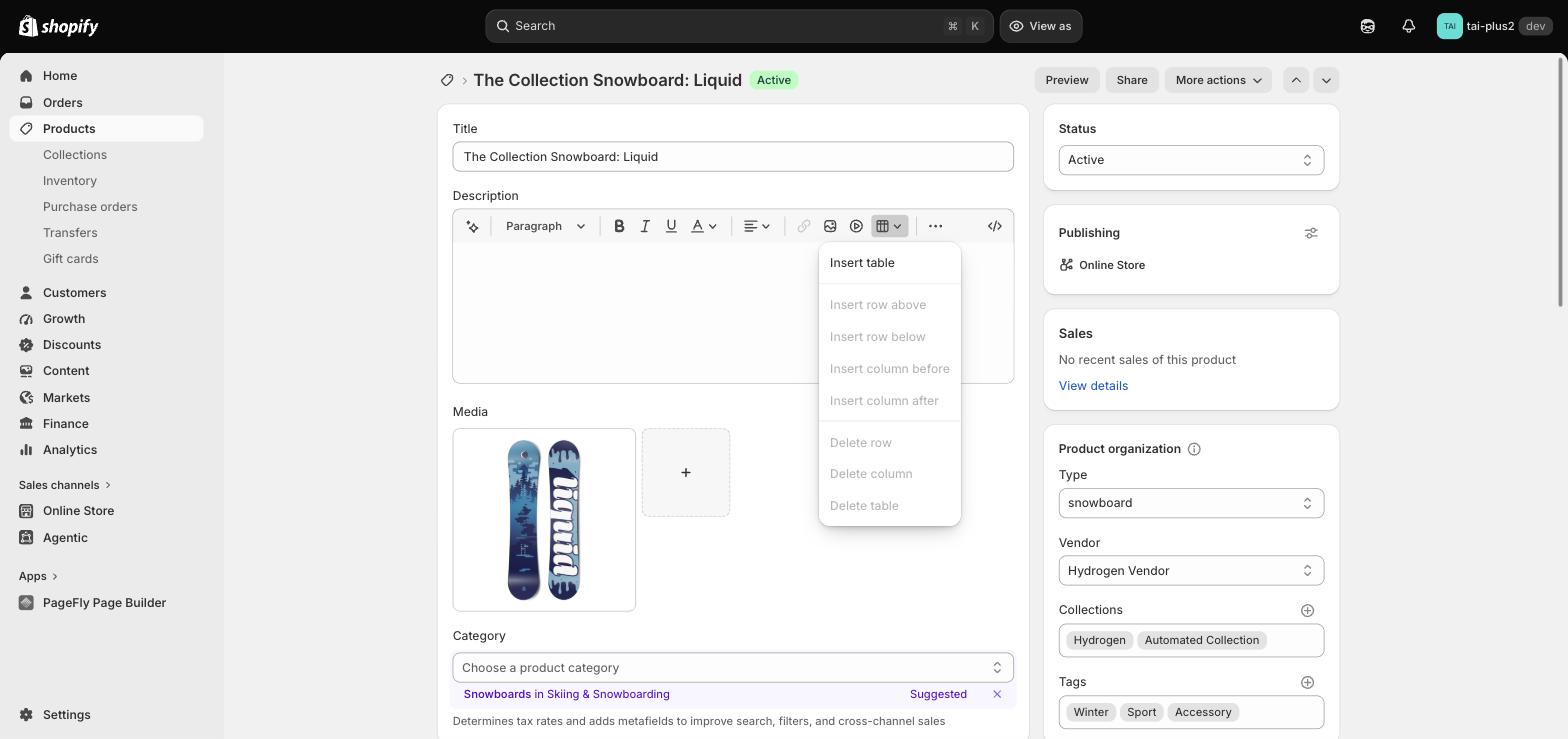
Step 2 — the table menu inside the product Description editor. Insert table creates a one-row, one-column table; the row and column controls stay greyed out until your cursor is inside it. Tested first-hand by PageFly, 13 August 2026.
Two real limits before you commit to this. Shopify warns that hand-editing the HTML "might cause display errors on your storefront" and runs automatic sanitisation that can override manual edits, so inline table CSS may simply disappear. If you need styling that survives, put it in a custom CSS block instead. And a description table inherits your theme's styling with no responsive behaviour of its own — a seven-column chart will overflow on mobile. Baymard's figure for that failure mode is stark: 87% of mobile apparel sites fail to provide sufficient sizing information (Baymard, 2022).
Treat this method as a correct answer shipped fast, then upgrade. It is the same logic as fixing copy before redesigning a landing page.
Method 2 — Shopify's native size chart pop-up (free, no code)
Best for: merchants on an Online Store 2.0 or Horizon-family theme who want zero apps and zero monthly cost.
This is the officially documented route, and it is genuinely no-code. You create a Page that holds the chart, a product metafield that points at that page, and a Pop-up block on the product template that opens it. Shopify's tutorial for it is on the Help Center.
Step 1 — Create the metafield definition
- Go to Settings > Metafields and metaobjects — the same place you would define any other custom field.
- Select Products under Metafield definitions.
- Click Add definition.
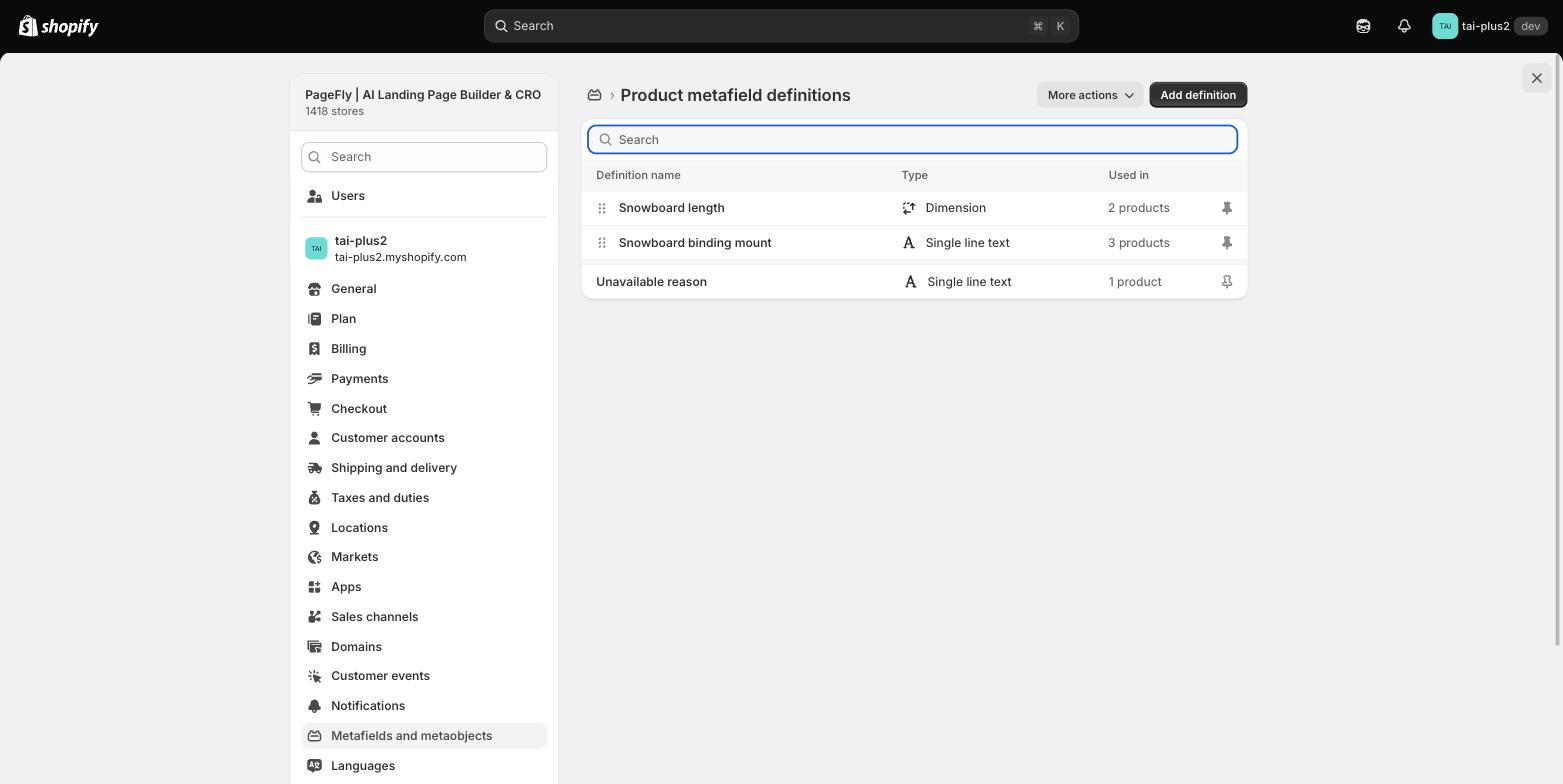
Step 3 — Product metafield definitions, with the Add definition button top right. Tested first-hand by PageFly, 13 August 2026.
- Name it Size chart.
- Set Type to Page — "One page" is the default cardinality, which is what you want.
- Save.
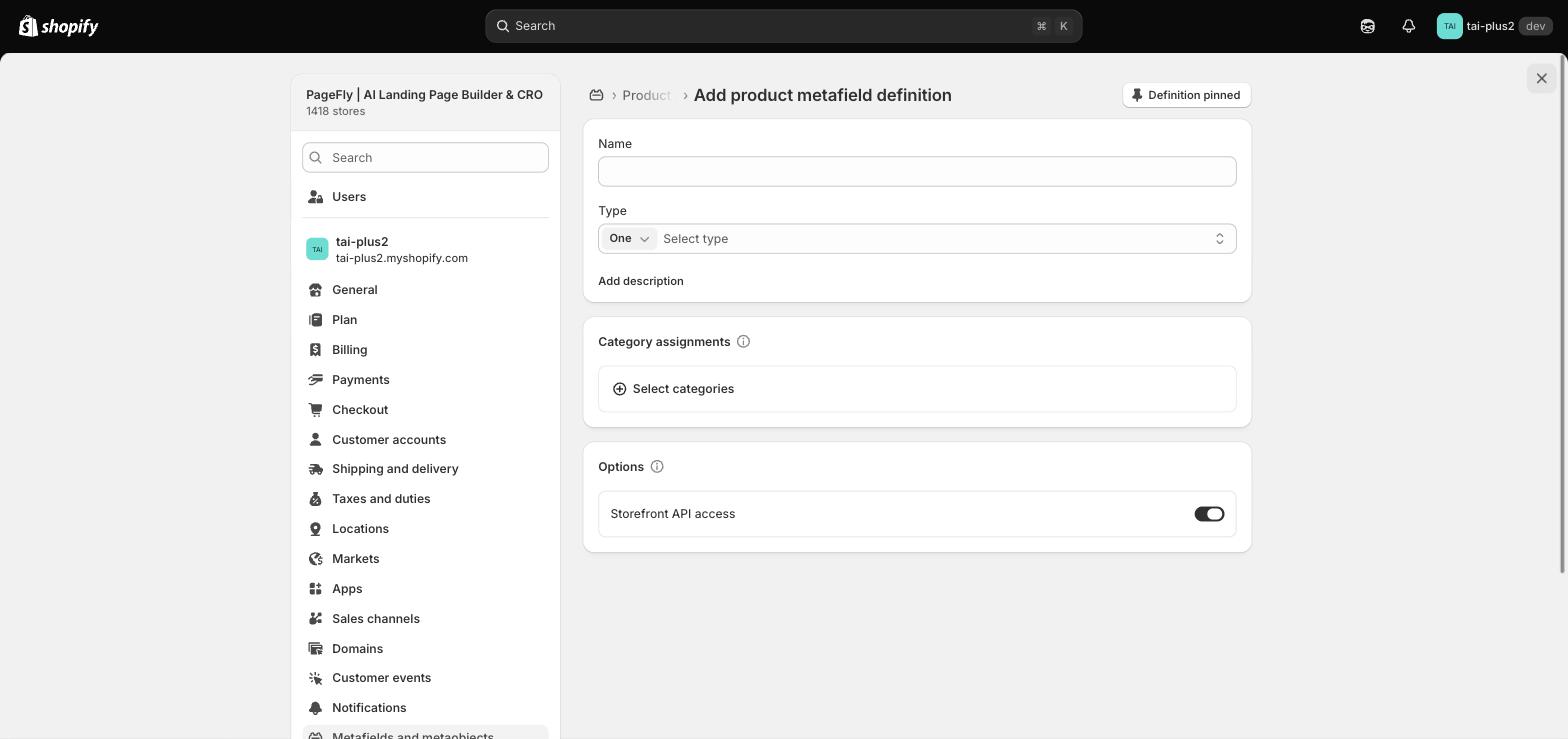
Step 5 — the definition form. The small One selector next to Type controls whether the field holds one page or a list; leave it on One. Tested first-hand by PageFly, 13 August 2026.
Shopify's own placeholder text in the page picker tells you how routine this is — it literally suggests "e.g., about us, sizing chart, FAQ". You can create the chart page from inside this flow rather than leaving for the Pages section.
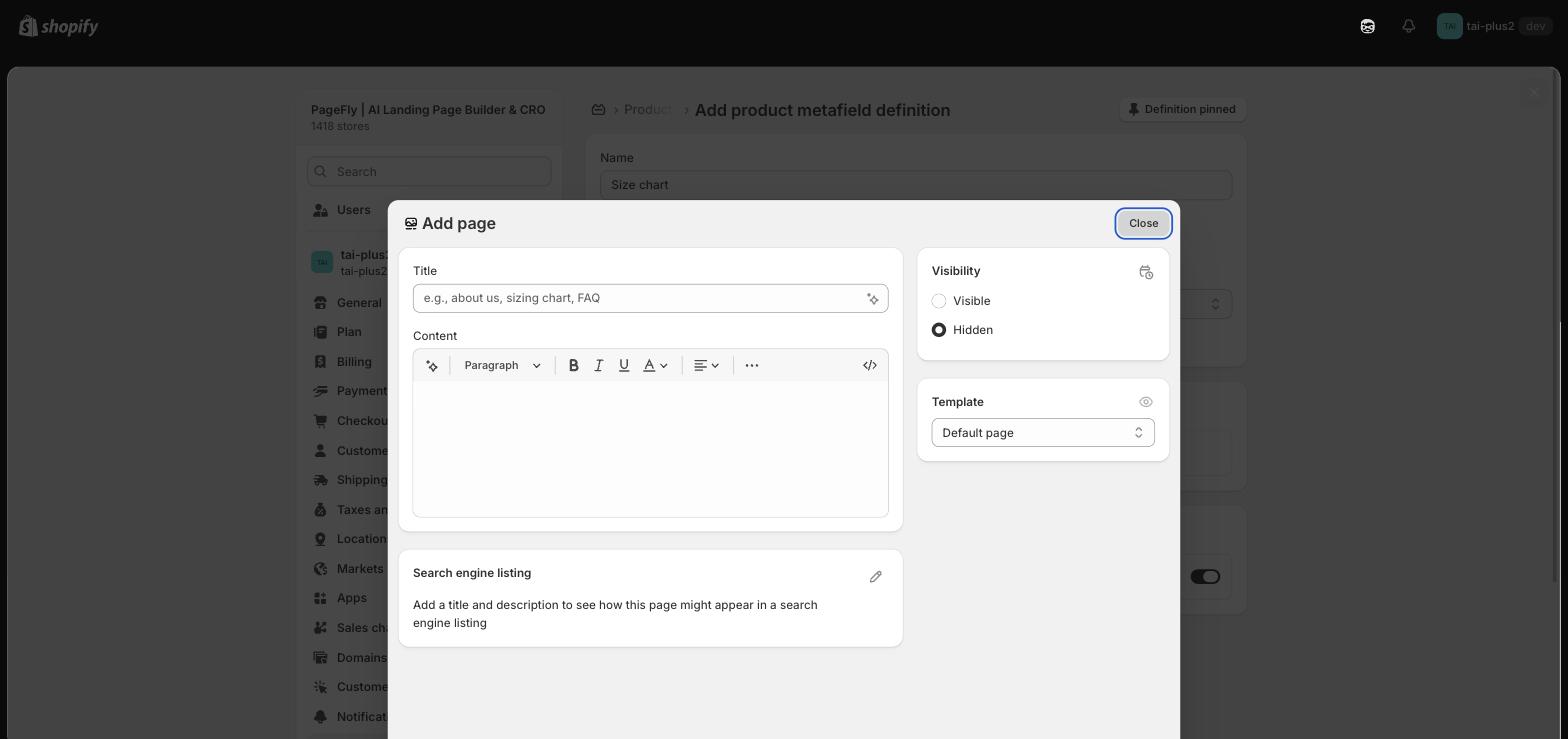
Step 6 — the Add page modal opened from the Page-type metafield, with Visibility set to Hidden so the chart page never appears in navigation. Tested first-hand by PageFly, 13 August 2026.
Step 2 — Add the Pop-up block to your product template
- Go to Online Store > Themes > Edit theme.
- Switch the template dropdown from Home page to Products, then click Create template if you want the chart on only some products. Our theme customization guide covers that dropdown in detail.
- Under Product information blocks, add a Pop-up block.
- Set Link label to Size chart.
- Click the dynamic source icon next to the Page setting and select your metafield.
- Save.
Shopify states the requirement plainly: this "requires a theme that supports dynamic sources. If you're using a vintage theme… then you can edit your theme code or hire a Shopify Partner." If you are not sure which camp you are in, our guide to Shopify 2.0 themes explains how to check, and the Shopify theme editor walkthrough covers the dropdown and dynamic-source icon in more detail.
Two limits nobody mentions. Shopify's doc states "you can link only one page in the product metafield" — so one chart per product, no garment/body tabs. And if a product using the template has no page assigned, the link still renders but the pop-up is empty: at catalogue scale that is a silent broken state you will only find by clicking, so audit it the way you would audit a product catalog.
On Horizon-family themes there is one naming trap worth knowing. Merchants looking for the "Collapsible row" block cannot find it: in a July 2026 Shopify Community thread a merchant reported exactly that, and the answer is that Horizon renamed it. The block is now called Accordion, under Layout. If an accordion is the pattern you want rather than a pop-up, our accordion use case shows the finished result.
See how a full product page is assembled →
Method 3 — A dedicated size chart app
Best for: assigning different charts per collection or tag, automatic unit conversion, and multi-language stores. It is the same install-versus-build decision as choosing a landing page app, or a native AI tool over a specialist one.
Every figure in this table was read from the live Shopify App Store listing on 13 August 2026. All six show a free plan and all six carry the Built for Shopify badge.
| App | Developer | Rating | Reviews | Free plan cap | Watermark on free? | From (paid) | cm/in free? |
|---|---|---|---|---|---|---|---|
| Kiwi Size Chart & Recommender | Staytuned | 4.8 | 1,096 | 3 charts | Yes | $7.99 | Yes |
| MP Size Chart & Size Guide | Shopplaza | 5.0 | 818 | 3 charts | Not stated on the listing | $6.95 | Yes |
| Smart Size Chart & Fit Finder | SmartSize | 5.0 | 130 | 2 charts | No | $9 | Yes |
| BF Size Chart & Size Guide | Relentless Apps | 4.7 | 127 | 3 charts | No | $5.99 | No — $11.99 tier |
| ESC Size Charts | Eastside Co® | 4.1 | 123 | 3 charts | Yes | $4.99 | Not listed |
| CSC: Size Chart & Size Guide | TaskHusky | 5.0 | 94 | 2 charts | No | $6.99 | No — $6.99 tier |
How to read that table. "Free" is not one thing. If you need cm and inches on a free plan, MP, SmartSize and Kiwi give it to you and BF and CSC do not. If you need no watermark on a free plan, BF, SmartSize and CSC qualify and Kiwi and ESC do not. Free trials are 14 days everywhere except ESC, which is 7. Before installing anything, take a backup — app embeds touch your product template.
Four warnings that came from named merchants, not from marketing pages:
- Order-volume pricing can escalate hard. Sowears, a US merchant about four years into Kiwi, wrote on 4 August 2026: "We used to pay around $5 to $7 per month. Now we are being charged around $150 per month because the pricing is based on the number of orders."
- An app can hide your express checkout. Hammargruppen, a Swedish merchant, in a review edited 17 March 2026: "if you have a product with more than one variant and also use express checkout buttons such as Shop Pay or Google Pay, the Size Chart app hides the express checkout button." Check that before and after installing — a hidden Shop Pay button is a conversion rate problem, not a cosmetic one.
- Translation often stops at the button. COEGA Sunwear, a UAE merchant, on 1 July 2026: "when you buy it and hit translate, it only translates the buttons and header. — Content inside the size guide is not translated — Shopify's native 'Translate & Adapt' can't touch it." If you sell across multiple markets, test this on a real locale before you rely on it.
- Support response times vary. Two ESC reviewers in mid-2026 reported emailing support without a reply. Read the recent one-star reviews, not the average, and keep a rollback plan.
Migration is the other thing to think about up front. The same Sowears review notes that "once you have created 100+ size charts, switching to another app is extremely time consuming and difficult." Two of the six — MP and CSC — advertise free migration of existing charts, which is worth more than a dollar of monthly price difference.
Method 4 — A custom drawer or modal
Best for: brands where fit is the product, and generic app output is not good enough.
The clearest example we could find running on Shopify today — and there are plenty more in our Shopify clothing stores roundup — is Taylor Stitch. We opened their Democratic Jean product page on 13 August 2026: the size guide is theme-coded, with no size-chart app on the page at all.
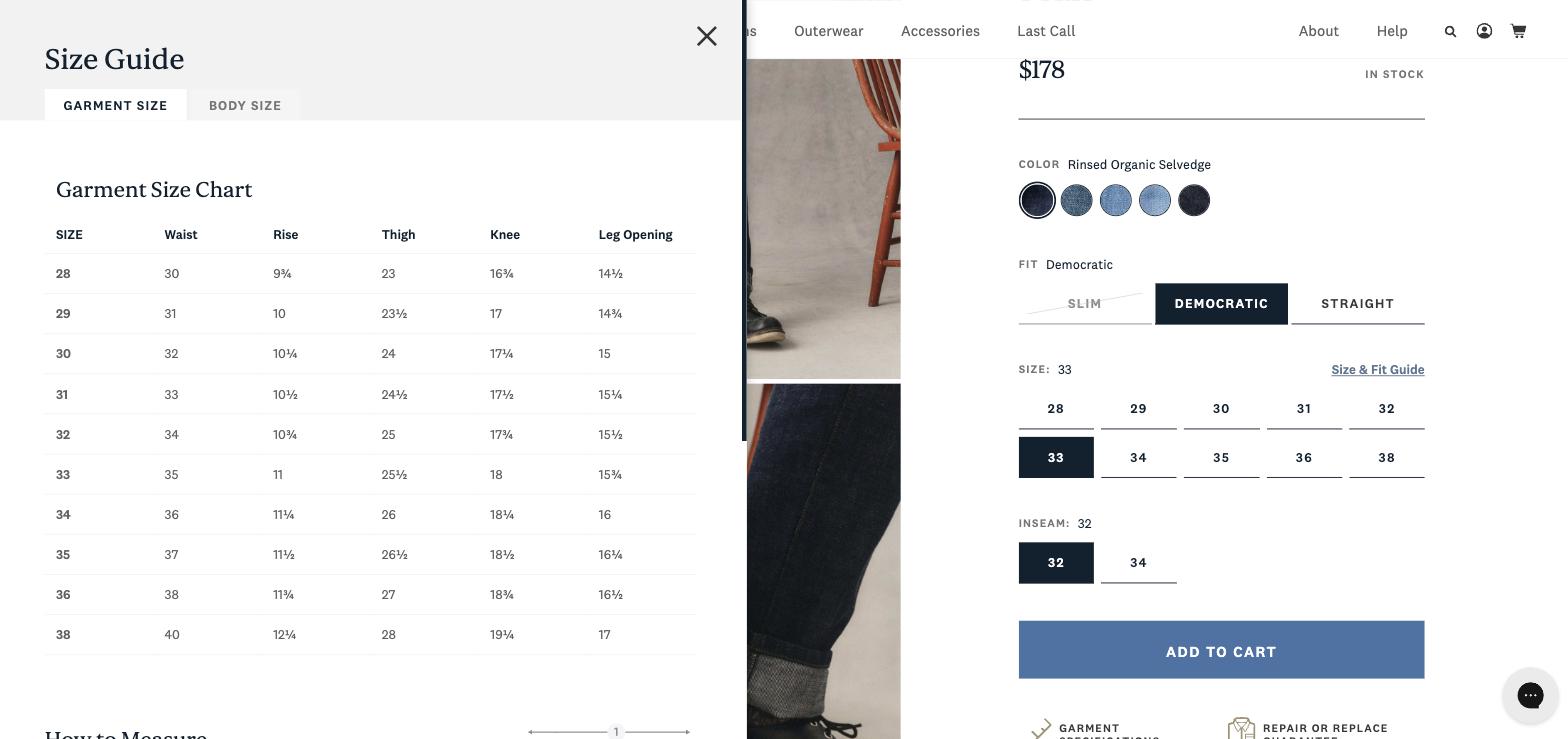
What good looks like — Taylor Stitch's size guide drawer, opened from a Size & Fit Guide link sitting directly beside the size buttons. Two tabs separate garment measurements from body measurements, and a How to Measure diagram sits below. Source: taylorstitch.com, captured 13 August 2026.
Count what that one drawer does: garment measurements, body measurements, how-to-measure instructions, a chart specific to this product type, and a link placed next to the size selector. That is five of Baymard's ten sizing components, in one panel, with no app subscription. The lesson is not "build it custom" — it is that the structure is what makes a chart useful, and you can copy the structure into any of the three cheaper methods above.
The pattern also generalises past clothing. Moon Magic, a Shopify jewellery store, runs a right-side Find Your Size drawer that branches into "I have a ring" and "I don't have a ring", then converts diameter in millimetres into US, European and UK sizes. Rings, hats, collars and shoes all have the same problem apparel does, which is why sizing shows up in almost every store example worth studying.
Does a size chart actually reduce returns?
Almost every page ranking for this topic promises that it does, without citing anything. The most rigorous study available says something more interesting.
A peer-reviewed 2025 analysis in the Journal of Innovation & Knowledge examined 496,365 items ordered by 75,707 customers across 113 countries on a fashion platform. Its findings: customers using the size finder were 0.65% more likely to return an item — and for each unit quarterly increase in size-finder use, customer lifetime value rose 7.51% the following quarter and 5.53% the quarter after.
Read that carefully, because it is not an argument against size charts. It says the mechanism is confidence and repeat purchase, not refund suppression. A shopper who checks the chart is a shopper who is deciding carefully; some of them still send it back, and they come back to buy again — the pattern behind most repeat-purchase behaviour.
The industry-level numbers still justify the work. The National Retail Federation projected $849.9 billion in retail returns for 2025, with 19.3% of online sales returned. Shopify's own enterprise analysis puts online returns at 19.3% against 15.8% for retail overall and names the cause directly: "Apparel and footwear see higher rates because fit and sizing are hard to judge from a product page."
So set the expectation honestly with your team: a size chart is a lifetime-value instrument that happens to touch returns. If your target is fewer refunds this quarter, pair it with the rest of the product page fundamentals rather than expecting one table to carry it.
Make your size chart readable by AI agents
This is new, and it is the reason to redo a chart you already have. Shoppers increasingly arrive through an assistant that has already filtered the catalogue, and those systems read structured data, not pictures of tables.
That traffic comes from several directions at once. On the discovery side it is ChatGPT and Perplexity answering "which brand fits a 34-inch waist" before the shopper ever sees a product page.
On the merchant side, Shopify's own Sidekick reads your store data, and the Shop app sits in between as a shopping surface of its own.
Ton Wiedenhoff, Executive Director Europe at sizing specialist Alvanon, put the risk sharply in a 30 July 2026 interview:
"AI agents rely on structured machine-readable data to evaluate and recommend products. If a brand's sizing information is inconsistent or incomplete, AI agents won't be able to recommend its products effectively. Even worse, if AI is working with inaccurate sizing data, it will simply recommend the wrong products more efficiently, making the returns problem even bigger!"
Three practical consequences for a Shopify store:
- Use a real HTML table, never a screenshot. An image chart cannot be parsed, cannot be translated by Shopify Translate & Adapt, and is invisible to screen readers. This alone is why Method 1 beats uploading a JPG to the product gallery, even a well-made one from an AI image tool.
- Give both units and international conversions in the markup, as columns rather than prose. An agent filtering on "ships to Canada, fits a 34-inch waist" needs both values to be extractable.
- Keep the chart in the page HTML, not injected after load. Content that only exists after JavaScript runs is invisible to a large share of crawlers — the same principle behind getting your store recommended by ChatGPT and Perplexity and behind answer engine optimization generally.
If you want the broader picture of how assistants are starting to buy on shoppers' behalf, our explainer on Shopify agentic commerce covers the mechanics, and Shopify AI agents covers the tooling.
Which method should you use?
| Method | Cost | Skill | Theme needed | Per-product charts | Best for |
|---|---|---|---|---|---|
| Description table | Free | None | Any, incl. vintage | Yes, manually | Shipping something correct today |
| Native metafield pop-up | Free | None | Dynamic sources (OS 2.0+) | One page per product | No apps, no monthly cost |
| Size chart app | Free tier, then $4.99–$9 | None | App blocks (OS 2.0+) | By tag, collection, product | Large catalogues, units, translation |
| Custom drawer | Developer time | HTML/CSS/Liquid | Any | Fully flexible | Fit-led brands |
A note on plans, since it is the most common wrong assumption: none of this requires Shopify Plus. Metafield definitions are capped at 256 per resource type on every plan, which is far more than a size chart programme will ever need. If you are still choosing a plan, our Shopify pricing breakdown has the current numbers.
And if the store does not exist yet, start with the $1 trial guide — sizing is a much easier problem to solve on day one than on day 400. The free trial page is the shortest path in.
A 10-minute implementation plan
- Minutes 0–2: open your best-selling product on a phone and run the PLEASE-Use Test. Not sure which theme you are on? A theme detector answers it in seconds. Write down which of the four checks you fail.
- Minutes 2–4: if the link is hard to find, move it beside the size buttons. This is usually the entire win.
- Minutes 4–8: build one real chart with garment measurements, body measurements and how-to-measure instructions, in both cm and inches. A simple labelled diagram helps more than extra columns.
- Minutes 8–10: ship it with Method 1 or Method 2, then decide whether an app is worth it once you know how many distinct charts your catalogue actually needs. If you need a developer for the custom route, our Shopify development services directory lists costs.
One last thing worth measuring rather than assuming: run an A/B test on the link position before you spend money on a fancier chart.
Getting the placement and the structure right matters more than which of these four routes you pick — the same way page structure matters more than page count when you build a Shopify store.
If your product pages need layout changes that your theme's blocks cannot express, a Shopify page builder is the usual next step. PageFly, a Shopify page builder, is one of the options in that roundup, and the collection page use case shows the same approach one level up.
Shopify Size Chart FAQ
No. Every method works on Basic and above. Metafield definitions are capped at 256 per resource type on every plan, which is far more than a size chart programme needs. The real requirement is your theme, not your plan.
Two free routes. The fastest is inserting a table into the product description with Shopify's rich text editor, which works on any plan and any theme. The better one is Shopify's native pop-up: create a Page-type product metafield called Size chart, then add a Pop-up block to your product template and bind it with the dynamic source icon.
Yes. With the native metafield method each product points at its own page, although Shopify allows only one page per product metafield. Size chart apps go further and assign charts automatically by product tag, collection, vendor or product type.
It depends on the attribute you care about. On free plans MP Size Chart, Kiwi and Smart Size Chart include unit conversion between centimetres and inches, while BF and CSC put it behind a paid tier. BF, Smart Size Chart and CSC add no watermark on their free plans, while Kiwi and ESC do. Free chart caps are 3 for MP, Kiwi, BF and ESC, and 2 for Smart Size Chart and CSC. All figures read from the App Store listings on 13 August 2026.
Not directly, according to the largest peer-reviewed study available. Across 496,365 items ordered by 75,707 customers, shoppers who used a size finder were 0.65% more likely to return an item, while each unit quarterly increase in size finder use raised customer lifetime value by 7.51% the following quarter. Treat a size chart as a confidence and loyalty instrument rather than a refund suppressor.
Because many apps translate only the button and header, not the chart content, and Shopify's native Translate and Adapt cannot reach content rendered inside the app. Test a real locale before relying on it, and prefer a real HTML table over an image so the content stays translatable and readable by AI shopping agents.